Overview
This tutorial continues by converting the home page from a plain HTML file to one that is based on Nunjucks templates. This article was written with a slant towards Visual Studio Code as the development editor. If you are using something else (Atom, Sublime, etc.) you will need work out the steps for your environment.
(All source code is available at Github )
Partials and Layouts
A "partial" refers to a code snippet that is not a complete layout in and of itself. One can think of a partial as a component that can be reused across multiple layouts.
A "layout" refers to the overall setup of the entire page which may contain partials, HTML code, Nunjucks code, etc.
Getting Started
The first step in any sort of conversion is to determine what parts of the page need to be reused across other pages. For our home page, we can see that the reusable portions of the page are the top portion of the document (<!DOCTYPE> through </header>) and the bottom portion (<footer> through </html). Let's isolate those into the _head.njk and _foot.njk into partials.
Converting the HTML Page to Nunjucks Partials and Layout
Create the partials_layouts folder under the src folder by right-clicking the src folder and selecting New Folder, then create the new files, _head.njk and _foot.njk in the partials_layouts folder.
/src/partials_layouts/_head.njk:

<!DOCTYPE html>
<html lang="en">
<head>
  <meta charset="UTF-8">
  <meta http-equiv="X-UA-Compatible" content="IE=edge">
  <meta name="viewport" content="width=device-width, initial-scale=1.0">
  <link rel="stylesheet" type="text/css" href="/css/styles.css">
  <title>My Home Page</title>
</head>
<body>
  <header>
    <div class="header">
      <div class="homelink">
        <h1><a href="/">My Home Page</a></h1>
      </div>

      <div class="menu">
        <ul>
          <li><a href="/">Home</a></li>
          <li><a href="/about/">About</a></li>
        </ul>
      </div>
    </div>
  </header>
/src/partials_layouts/_foot.njk:
<footer>
<div>Copyright ©2021 By Me!!!!</div>
</footer>
</body>
</html>
Having done that, let's now convert the rest of the home page to a layout:
/src/partials_layouts/home_page.njk:


{%- include '_head.njk' -%}

  <main>
    <section>
      <h2>Section 1</h2>
      <p>This is the home page of my spiffy new website.</p>
      <p>Lorem, ipsum dolor sit amet consectetur adipisicing elit. Reiciendis natus beatae officiis dolorem odio voluptate in atque corrupti deleniti illo nihil eos earum, repudiandae voluptatem blanditiis dolore corporis? Iusto, tempore!</p>
      <p>Lorem, ipsum dolor sit amet consectetur adipisicing elit. Reiciendis natus beatae officiis dolorem odio voluptate in atque corrupti deleniti illo nihil eos earum, repudiandae voluptatem blanditiis dolore corporis? Iusto, tempore!</p>
    </section>
    <section>
      <h2>Section 2</h2>
      <p>Lorem, ipsum dolor sit amet consectetur adipisicing elit. Reiciendis natus beatae officiis dolorem odio voluptate in atque corrupti deleniti illo nihil eos earum, repudiandae voluptatem blanditiis dolore corporis? Iusto, tempore!</p>
      <p>Lorem, ipsum dolor sit amet consectetur adipisicing elit. Reiciendis natus beatae officiis dolorem odio voluptate in atque corrupti deleniti illo nihil eos earum, repudiandae voluptatem blanditiis dolore corporis? Iusto, tempore!</p>
    </section>
  </main>

{%- include '_foot.njk' -%}
Nunjucks directives are surrounded by a pair of {% %} symbols. In the code above you can see the include directive that inserts the contents of the specified file at the point the directive appears in the layout. The dash (-) that follows the percent sign on the opening tag and the one that precedes the percent sign on the closing tag ensure that the tags themselves do not insert any additional spaces or lines in the generated file.
Now we can go back to the original index.html file, remove all of the contents of the file, and replace it with frontmatter. Frontmatter is a YAML format that essentially provides additional data and/or meta-data. In this case, we will specify the layout for the page to be home_page.njk.
/src/index.html:

---
layout: home_page.njk
---
If all goes well, you should be able to refresh your browser and see the same page that you did at the end of Part 1 of the tutorial:
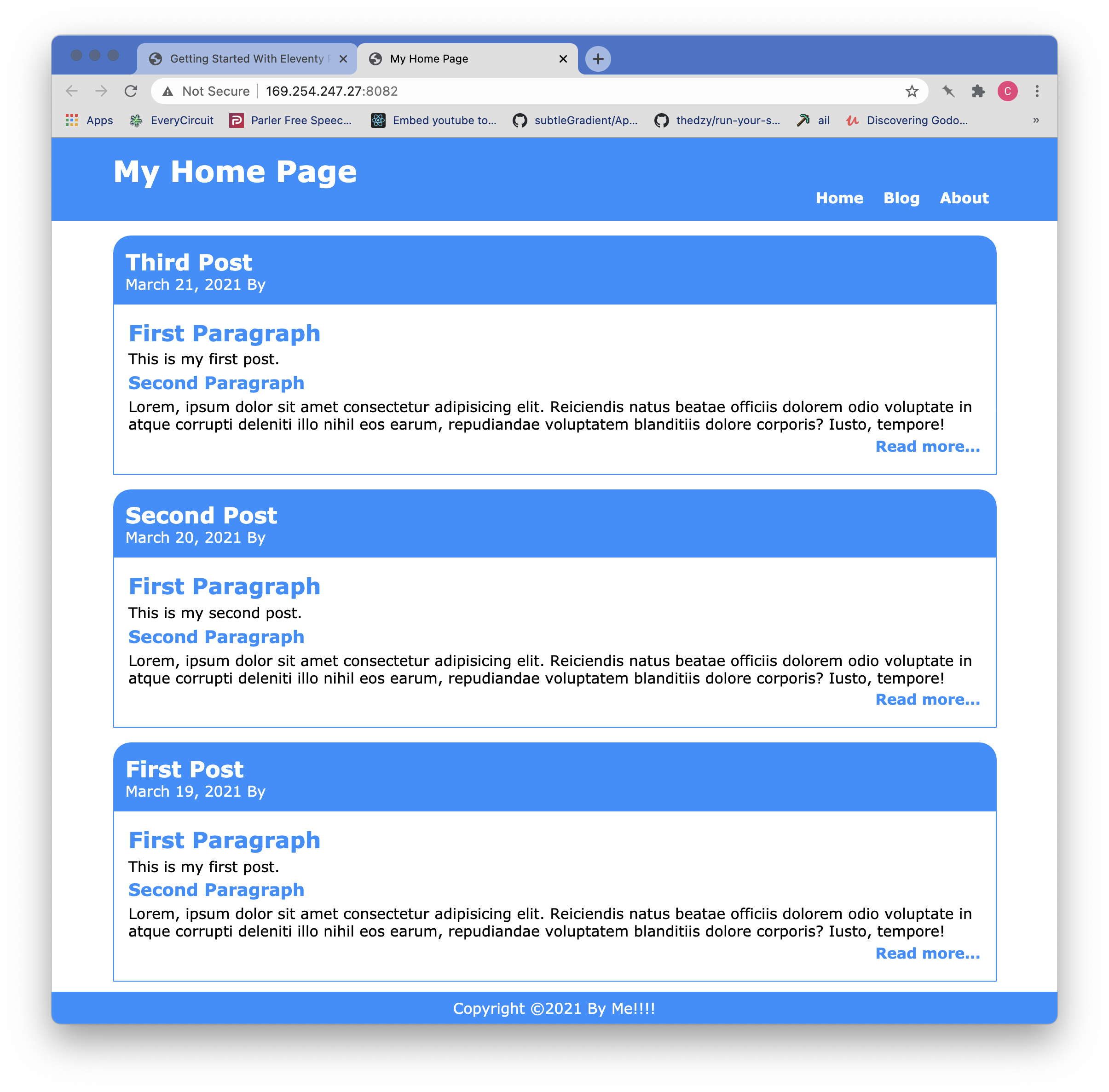
Let's do one more thing so that we can move away from repeating text. We will add an attribute to the index.html frontmatter named title.
/src/index.html:

---
title: My Home Page
layout: home_page.njk
---
We can now change the _head.njk partial to use the title from the frontmatter for the document title and the page title in the H1 tags of the header.
/src/partials_layouts/_head.njk:


<!DOCTYPE html>
<html lang="en">
<head>
  <meta charset="UTF-8">
  <meta http-equiv="X-UA-Compatible" content="IE=edge">
  <meta name="viewport" content="width=device-width, initial-scale=1.0">
  <link rel="stylesheet" type="text/css" href="/css/styles.css">
  <title>{{ title }}</title>
</head>
<body>
  <header>
    <div class="header">
      <div class="homelink">
        <h1><a href="/">{{ title }}</a></h1>
      </div>

      <div class="menu">
        <ul>
          <li><a href="/">Home</a></li>
          <li><a href="/about/">About</a></li>
        </ul>
      </div>
    </div>
  </header>
Note that we have replaced the string "My Home Page" with {{ }} tags that contain the variable title. The value of title is pulled from the frontmatter variable named title. When the browser refreshes, you should still see My Home Page in the tab for the page and in the title bar. This capability reduces the effort required to create/manage pages and is heavily used in the main Farmer Frog website as well as this doc site.
The About Page
The home page, sometimes called the landing page, generally has a format that is much different than the rest of the pages on the site. What may not be obvious at first glance, is that the two sections on the home page should actually be a blogroll that gets updated whenever a new post is added to the site. We'll hold off on that for right now so that we can focus on creating the About page.
The first step in creating the About page is to create a generic page template. We already have a good start with the two partials that contain the elements that we expect to be common to all pages, so lets create a new generic layout for the rest of the pages.
Creating a Generic Layout
Our assumption will be that the developer knows a bit about Markdown and HTML/CSS so what we will need to do for the generic page layout is to provide for the common elements (header/footer) and process any other data as Markdown content.
Markdown has become something of a de facto standard for writing HTML pages because the author can focus on the writing, then style the pages later on. Markdown also allows the author to freely intermingle HTML if a specific format / effect is desired. These pages are processed by a Markdown engine and converted to HTML.
/src/partials_layouts/home_page.njk:


{%- include '_head.njk' -%}
{{ content | safe }}
{%- include '_foot.njk' -%}
Here we see the Nunjucks directive content used with a filter named safe. The content directive includes any content from the body of the Mardown file after it has been processed by the Markdown processor. Interestingly you can also embed Nunjucks directives in the Markdown files after the frontmatter. The safe filter marks the value as not needed to be automatically escaped.
Now lets create the About page Markdown file. First create the pages folder under the src folder, then create the file about.md under that folder.
/src/pages/about.md:


# Look Ma! It's all Markdown from here!

<br>

<div>
<img src="../img/thumbs-up.png" style="display: block; margin: auto;" alt="Winning!">
</div>

<br>

This page will tell somebody all about something about something...
After you save the file, you can click the About link in the header and you should see the following:
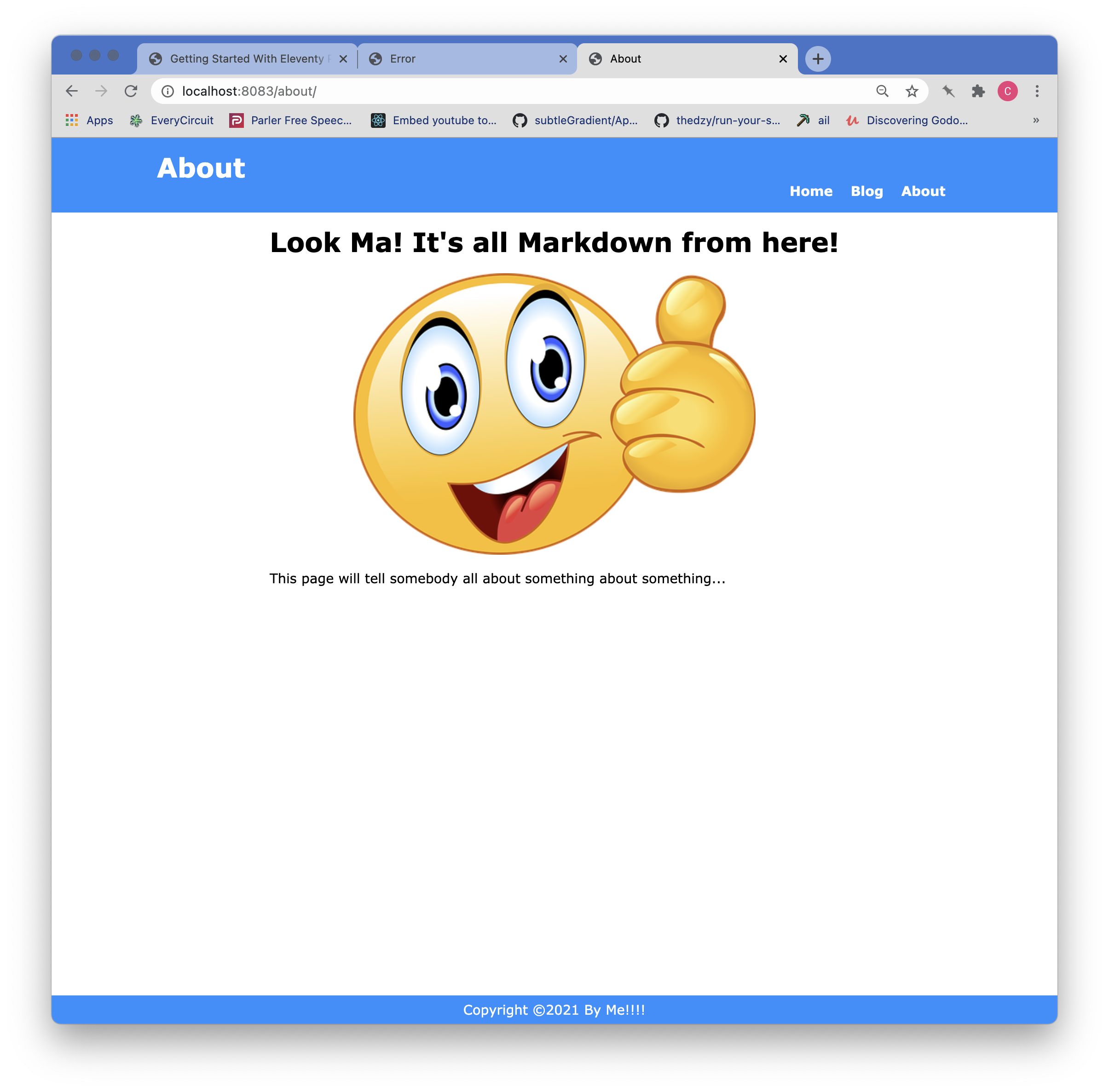
As you can see, the title was picked up from the frontmatter of the about.md file and substituted in both the tab for the page and the header. There are also several HTML tags intermingled with the Markdown that are correctly rendered. The only "bad" practice was embedding the style directly into the img tag. As a general rule, if you need to directly style a component it is better to assign a class and use that class name to create the style in a CSS file to avoid needlessly cluttering the content.
Wrap Up
In this part of the tutorial we have converted the home page to a templatized version based on a layout and two partials. We have optimized the _head.njk partial to retrieve the title of the page from the frontmatter of the page being generated and substituted that for the site header and the tab for the browser. We have also created a generic page layout that we can reuse.
UPDATE The site was restyled for a better appearance and the stylesheet updates are in the repo.
In the Part 3 we will create the layout for a blog post, a blog roll for the home page, and a blog roll for the blog page.